“Invoice automation” gets used to mean two different things, and most small businesses want both without realizing it.
The first is outbound invoicing: building invoices and sending them to your clients on schedule, without copying a Google Doc and exporting to PDF every time you finish a project. The second is inbound invoice processing (also called accounts payable automation, or AP automation): reading the invoices your suppliers send you, extracting the vendor, line items, and totals, and posting them to your accounting software without retyping anything.
This guide covers both. The outbound side gets a free n8n template you can import in 15 minutes. The inbound side gets a worked AI example with real costs and a starter workflow.
Here’s what the outbound version produces:
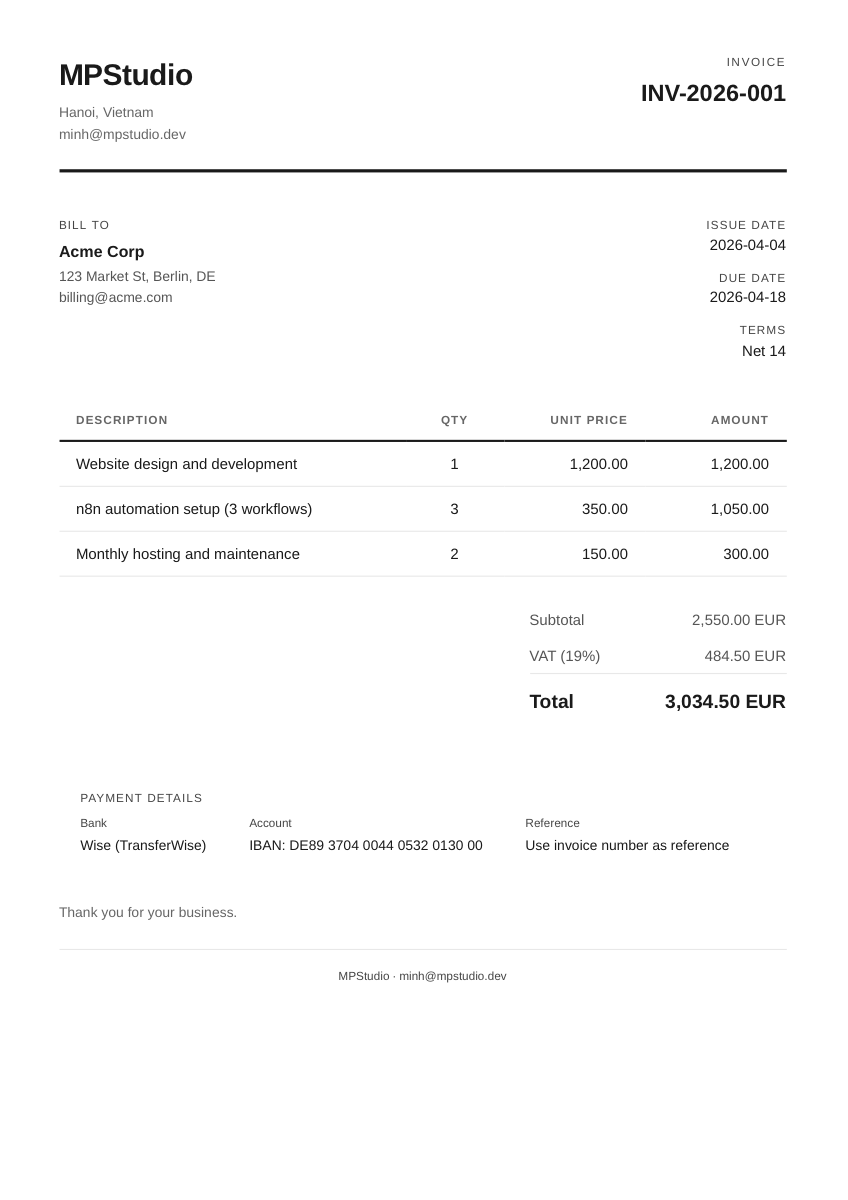
That’s a real PDF, generated automatically from a spreadsheet row. With tax calculated, payment terms included, bank details at the bottom. Every invoice looks the same, goes out on time, and costs essentially nothing to produce.
The outbound workflow
The spreadsheet has three tabs:
- Invoices stores the header info: invoice number, client details, dates, tax rate, payment terms, and a Status column that controls the workflow.
- Line Items stores the detail rows: description, quantity, unit price. Each row references an invoice number. One invoice can have as many line items as you need.
- Settings stores your business info: name, address, email, bank account, IBAN. You fill this in once. Every invoice uses it.
When you set an invoice’s Status to “Draft”, the workflow picks it up, joins the matching line items, calculates the subtotal and tax, generates a professional PDF, emails it, and flips the status to “Sent” so it doesn’t get processed twice.
Your invoice register
Here’s the actual schema. This is production-grade, not a demo.
Invoices tab: This is the header record. One row per invoice, with everything the PDF needs to render the top section: who to bill, when it’s due, what tax rate to apply.
| Invoice # | Date | Due Date | Client Name | Client Email | Client Address | Payment Terms | Tax % | Notes | Status |
|---|---|---|---|---|---|---|---|---|---|
| INV-2026-001 | 2026-04-04 | 2026-04-18 | Acme Corp | billing@acme.com | 123 Market St, Berlin, DE | Net 14 | 19 | Thank you for your business. | Draft |
Line Items tab: Each row is one billable line, linked to an invoice by its number. One invoice can have as many line items as you need. The workflow joins them automatically.
| Invoice # | Description | Quantity | Unit Price | Currency |
|---|---|---|---|---|
| INV-2026-001 | Website design and development | 1 | 1200 | EUR |
| INV-2026-001 | n8n automation setup (3 workflows) | 3 | 350 | EUR |
| INV-2026-001 | Monthly hosting and maintenance | 2 | 150 | EUR |
Settings tab: Your business details, filled in once. Every invoice pulls from here, so when you change your bank or address, you update one cell, not every invoice.
| Setting | Value |
|---|---|
| Business Name | Your Company Name |
| Business Email | you@company.com |
| Business Address | Your address |
| Bank Name | Wise / Revolut / your bank |
| Bank Account | IBAN or account number |
| Bank Reference | Use invoice number as reference |
The separation matters. One invoice can have 1 line item or 20. You don’t need to cram everything into comma-separated cells. And when you change your bank details or business address, you update one cell in the Settings tab, not every invoice.
The output
The workflow produces a properly formatted A4 PDF invoice with:
- Your business name and address in the header
- Invoice number, issue date, due date, and payment terms
- Client billing details
- Itemized line items with quantity, unit price, and calculated amounts
- Subtotal, VAT/tax (percentage-based, calculated automatically), and total
- Bank payment details (IBAN, bank name, reference)
- Custom notes field per invoice
The PDF gets attached to an email and sent directly to the client’s email address from the spreadsheet.
Every element comes from the spreadsheet. Change the tax rate to 25% for a Swedish client, and the invoice recalculates. Change the payment terms to Net 30, and it shows on the PDF. No template editing required.
Step 1: Get the files
Google Sheet template: Make a copy (opens Google Sheets, creates your own editable copy). Fill in your details on the Settings tab.
n8n workflow: Download n8n-invoice-generator.json. Import it in n8n via Workflows > Import from File, then connect your Google credentials.
Step 2: Understand the workflow
The workflow has 6 nodes:
- Schedule Trigger checks for new Draft invoices every 15 minutes. There’s also a Manual Trigger for testing.
- Read Invoices pulls rows from the Invoices tab where Status = “Draft”.
- Read Line Items pulls all line items, then a Merge node joins them to the matching invoice by invoice number.
- Read Settings pulls your business info from the Settings tab.
- Build HTML + Convert to PDF generates the invoice HTML and sends it to a free PDF conversion API.
- Email + Mark Sent emails the PDF to the client and updates the Status column to “Sent”.
Step 3: Connect your Google account
You’ll need a Google credential in n8n with access to Sheets and Gmail:
- In n8n, go to Credentials > Add Credential > Google Sheets OAuth2
- Follow the OAuth flow (n8n walks you through it)
- Do the same for Gmail OAuth2
- If self-hosting, you’ll need a Google Cloud project with the Sheets, Drive, and Gmail APIs enabled. The n8n Google credentials docs cover this step by step.
Step 4: Update the spreadsheet URL
In the workflow, open the “Read Invoices”, “Read Line Items”, and “Read Settings” nodes. Point each one to your Google Sheet URL.
Step 5: Test it
- Add a row to your Invoices tab with Status = “Draft”
- Add matching line items in the Line Items tab
- Click Test Workflow in n8n
- Check your email. The PDF should arrive within seconds.
Once it works, activate the workflow. Every 15 minutes, any new Draft rows get processed automatically.
What this replaces
Most small businesses either invoice manually or pay for a dedicated tool. Here’s how the costs stack up:
| Approach | Monthly cost | Per invoice | Customizable |
|---|---|---|---|
| Manual (copy/paste in Google Docs) | $0 | ~10 min of your time | Fully, but slow |
| FreshBooks (Plus) | $43/mo | Included (50 clients) | Limited templates |
| Xero (Growing) | $55/mo | Included | Limited templates |
| QuickBooks (Essentials) | $75/mo | Included (3 users) | Limited templates |
| This workflow (self-hosted n8n) | $0 | $0 | Fully |
| This workflow (n8n Cloud) | ~$24/mo | ~$0.01 | Fully |
The dedicated tools do more than invoicing: expense tracking, bank reconciliation, tax reporting. If you need a full accounting suite, use one.
But if your pain is “I spend too long creating and sending invoices” and you already track things in a spreadsheet, this workflow saves you $500 to $900 per year while giving you full control over format, layout, and delivery.
Make it your own
This is a real system, not a concept. But here’s how I’ve extended it for clients:
- Add a Stripe payment link. Add a Code node that creates a Stripe Payment Link via the API and embeds it in the invoice HTML. Clients click and pay directly from the PDF.
- Overdue reminders. Build a second workflow that checks for invoices older than 30 days with Status still “Sent”. Sends a gentle reminder email automatically.
- Auto-numbering. Use a Code node that reads the last invoice number from the sheet and increments it. No more typing “INV-2026-047” manually.
- Branding. Host your logo somewhere (your domain, Cloudflare R2, or a public Google Drive link) and add an
<img>tag to the HTML template. Takes 5 minutes. - Accounting sync. Add a node after the email step that creates a matching invoice record in Xero or QuickBooks via their API. n8n has native nodes for both.
- Multi-currency. The template already reads the Currency column per line item. Each invoice uses whatever currency its line items specify.
Skip the spreadsheet entirely
Here’s where it gets interesting. What if you didn’t have to fill in the spreadsheet at all?
I built an extension to this workflow that uses AI to turn free-text project notes into a fully structured invoice. You describe the work in plain English, and the AI extracts the client info, line items, quantities, prices, tax rate, and payment terms.
What you type:
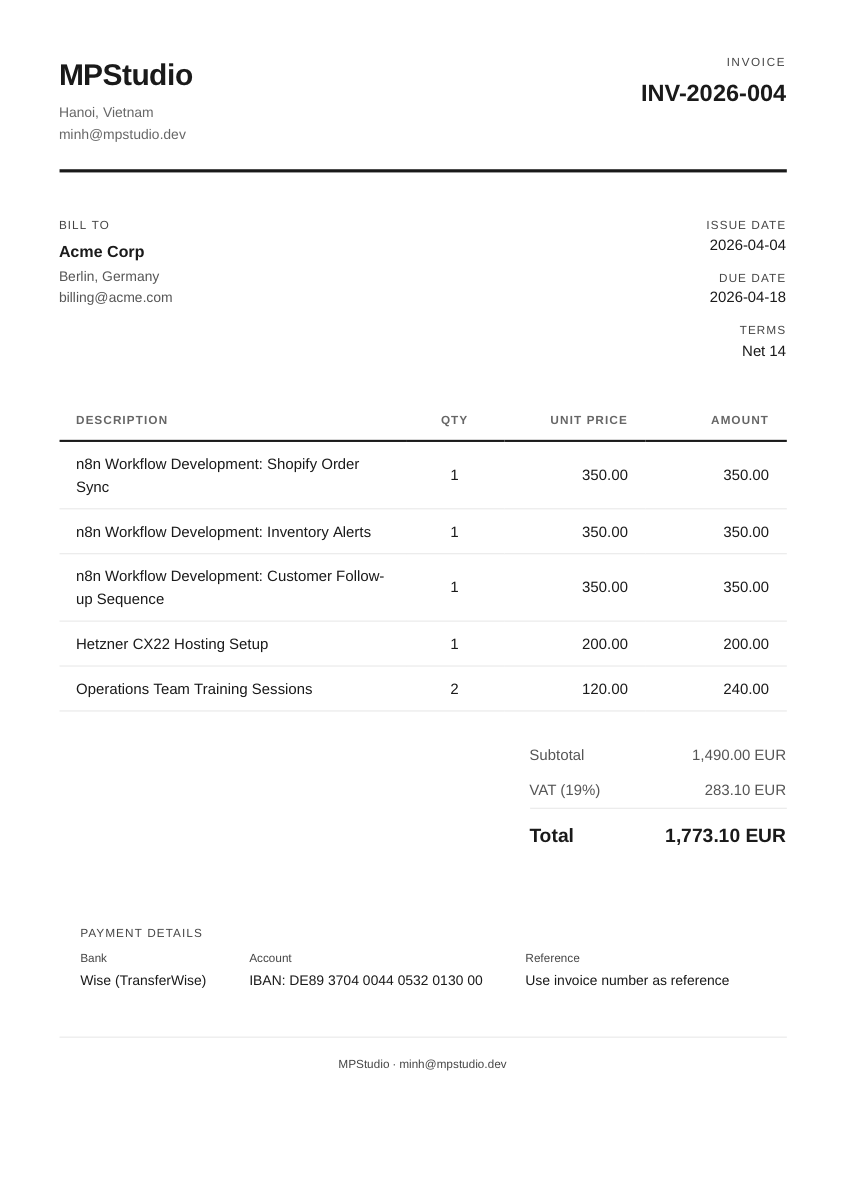
Built 3 n8n workflows for Acme Corp this month: the Shopify order sync, inventory alerts, and a customer follow-up email sequence. Each workflow was €350. Also set up their hosting on Hetzner CX22 for €200 one-time, and did 2 training sessions with their ops team at €120 per hour. They're based in Berlin, standard German VAT applies. Net 14 payment terms, invoice to billing@acme.com.
What the AI produces:
| Description | Qty | Unit Price | Amount |
|---|---|---|---|
| n8n Workflow Development: Shopify Order Sync | 1 | 350.00 | 350.00 |
| n8n Workflow Development: Inventory Alerts | 1 | 350.00 | 350.00 |
| n8n Workflow Development: Customer Follow-up Sequence | 1 | 350.00 | 350.00 |
| Hetzner CX22 Hosting Setup | 1 | 200.00 | 200.00 |
| Operations Team Training Sessions | 2 | 120.00 | 240.00 |
The AI correctly identified 5 separate line items, set the quantity to 2 for the training sessions, applied 19% German VAT without being told the exact number, extracted the client email, and set Net 14 terms. That free text becomes this invoice:
How it works in n8n
The AI parsing is a single extra node in the workflow. Add an AI Agent or OpenAI node before the “Build HTML Invoice” step:
The AI node uses a structured prompt that returns JSON with the exact fields the invoice template expects: client name, email, address, line items with quantity and unit price, tax percentage, and payment terms. The Code node then builds the HTML from that JSON instead of reading from the spreadsheet.
This is the same pattern I used for a client’s leave request system. Their team posts free-text messages like “Taking half day Friday afternoon” in a Microsoft Teams channel. An n8n workflow reads those messages, AI parses the intent (half day, full day, cancel, change dates), and the workflow sends a structured notification to HR with all the details formatted correctly. The AI handles edge cases like “Actually, make that Monday instead” or “Cancel my leave request from last week.”
For invoicing, it means you can go from a Slack message or email summary to a sent invoice in under a minute, without touching a spreadsheet at all.
What you need
- An OpenAI, Anthropic, or OpenRouter API key added as a credential in n8n
- Cost: about $0.002 per invoice (a few hundred tokens for the AI call)
- n8n’s built-in AI nodes handle the API call, JSON parsing, and error handling
The base template works without AI. This is an optional upgrade for people who want to skip the manual data entry entirely.
When supplier invoices land in your inbox
The other half of invoice automation is what bookkeepers actually mean when they say “invoice processing”: invoices arrive from your suppliers, and someone has to read each one, extract the vendor, dates, line items, and totals, and enter it into your accounting software.
For most small businesses, this is currently manual. Someone (usually the owner, the bookkeeper, or a part-time admin) opens each PDF, reads it, and types it into Xero or QuickBooks. At 20 to 50 supplier invoices a month, that is a few hours of focused work. At 200+, it is a part-time job. The market has been pricing this as a real cost for years: dedicated AP automation tools like Bill.com charge $45 to $79 per user per month, and Stampli is custom-quoted starting around $999 a month. The work is real, and the bidding around it reflects that.
AI changes the economics of this work. The same pattern that powers the outbound AI extension above also runs in reverse: a model reads the PDF, extracts structured data, and the workflow posts it to your books.
What the AI does
A single n8n node sends the PDF to a vision-capable model (Claude, GPT-4o, or Mistral OCR) with a prompt asking for structured JSON: vendor name, vendor tax ID, invoice number, issue date, due date, line items with description and amount, subtotal, VAT, total, and currency.
The model returns clean JSON in one or two seconds. The next node validates that the totals add up (subtotal + VAT = total), routes any mismatches to a human-review channel in Slack, and pushes the rest straight to Xero or QuickBooks via their native n8n nodes.
What it costs
| Cost component | Amount | Notes |
|---|---|---|
| AI API call (Claude or GPT-4o) | ~$0.01 to $0.03 per invoice | Vision model reading a 1 to 2 page PDF |
| n8n execution | ~$0.005 (Cloud) or $0 (self-hosted) | 1 execution per invoice |
| Storage (Drive or S3) | ~$0 | Filing the PDF after extraction |
| Total per invoice | ~$0.02 to $0.04 | vs. ~$2 to $4 of human time |
The accuracy question. A modern vision model gets the vendor name, dates, and total right ~99% of the time on clean PDFs. Line items vary: structured tables read cleanly, freeform handwritten or scanned invoices need review. The right pattern is "happy path posts straight, edge cases route to a review queue", not "trust the AI on everything". Build a validation step that compares subtotal + VAT against total, and route any mismatch to Slack for a human to glance at.
Where it breaks (and how to handle it)
Three concrete failure modes worth designing for:
- Photographed invoices. A photo of a paper invoice taken on a phone, or a low-resolution scan, will trip up extraction. Add a confidence-score check: if the model returns “I am not confident about this field”, route to manual entry.
- Foreign-currency line items. A supplier invoices in CHF but your books are in EUR. The workflow should not silently use the invoice number as the amount. Validate the currency code, and if it is not your default, run an FX lookup before posting.
- Duplicate invoices. Suppliers re-send invoices when payment is late. Hash the PDF content (or check vendor + invoice number against your books) before posting, so the same invoice does not enter Xero twice.
This is not a finished template I have packaged for download yet. It is a worked architecture I have built variations of for clients, and the moving parts are stable enough that you can build it from this description. If you want a hand wiring it up to your accounting software specifically, send me an email and I will share the n8n JSON.
What if the PDF conversion API goes down?
Add an IF node after the HTTP Request to check the response status. If it fails, route to a Slack or email notification. For maximum reliability, self-host Gotenberg alongside n8n. It runs in a Docker container, no API limits, no external calls. A $5/month VPS handles both.
Can I use Airtable instead of Google Sheets?
Yes. Swap the Google Sheets nodes for Airtable nodes. The rest of the workflow stays the same.
What about recurring invoices?
Add “Recurrence” and “Next Date” columns to the Invoices tab. Build a second workflow that checks daily for rows where Next Date equals today, duplicates them as new Draft rows with an incremented invoice number, and bumps the Next Date forward. The main workflow picks them up from there.
Can I change the invoice design?
Everything is in the Code node. The invoice is plain HTML with inline CSS. Change fonts, colors, layout, add a logo, rearrange sections. It’s your template. If you know basic HTML, you can make it look however you want.
How does this compare to QuickBooks or Xero’s built-in invoicing?
Xero and QuickBooks both send invoices, and if you already pay for them, use that. Where this n8n workflow earns its place is when your invoice data lives somewhere else: a Google Sheet your team already updates, a project tracker, an internal CRM. Instead of double-entering everything into accounting software just to send a PDF, you generate the PDF where the data already lives and (optionally) push the record into Xero afterwards.
Is invoice automation worth it for a one-person business?
If you send fewer than 5 invoices a month, probably not. The 15 minute setup beats 50 minutes of fiddling per month, but barely. The break-even is around 10 invoices a month. Above 20, the time saved adds up to several hours a month, and you also stop forgetting to send the late ones.
What about OCR and bank-statement matching?
Both are extensions of the inbound side. OCR is what extracts the data from a scanned PDF (covered above, using a vision-capable AI model instead of traditional OCR). Bank-statement matching is the next step: when you reconcile your bank account, the workflow finds the matching invoice in your books and marks it paid. n8n has bank feed connectors via Plaid or direct CSV import. The same pattern applies: AI parses, workflow validates, accounting software gets the result.
This is the kind of automation I build for clients regularly. If you want help customizing the template, connecting it to your accounting software, or building something more complex on top of it, send me an email. First conversation is always free.