Every Shopify store owner I’ve worked with does some version of the same thing: export orders to a spreadsheet for reporting, bookkeeping, or sharing with their team. Some do it manually. Some pay for an app. Most wish it just happened automatically.
It can. Here’s a free n8n workflow that syncs every new Shopify order to Google Sheets the moment it comes in. No code, no monthly app fee, and it takes about 15 minutes to set up.
The workflow in one picture
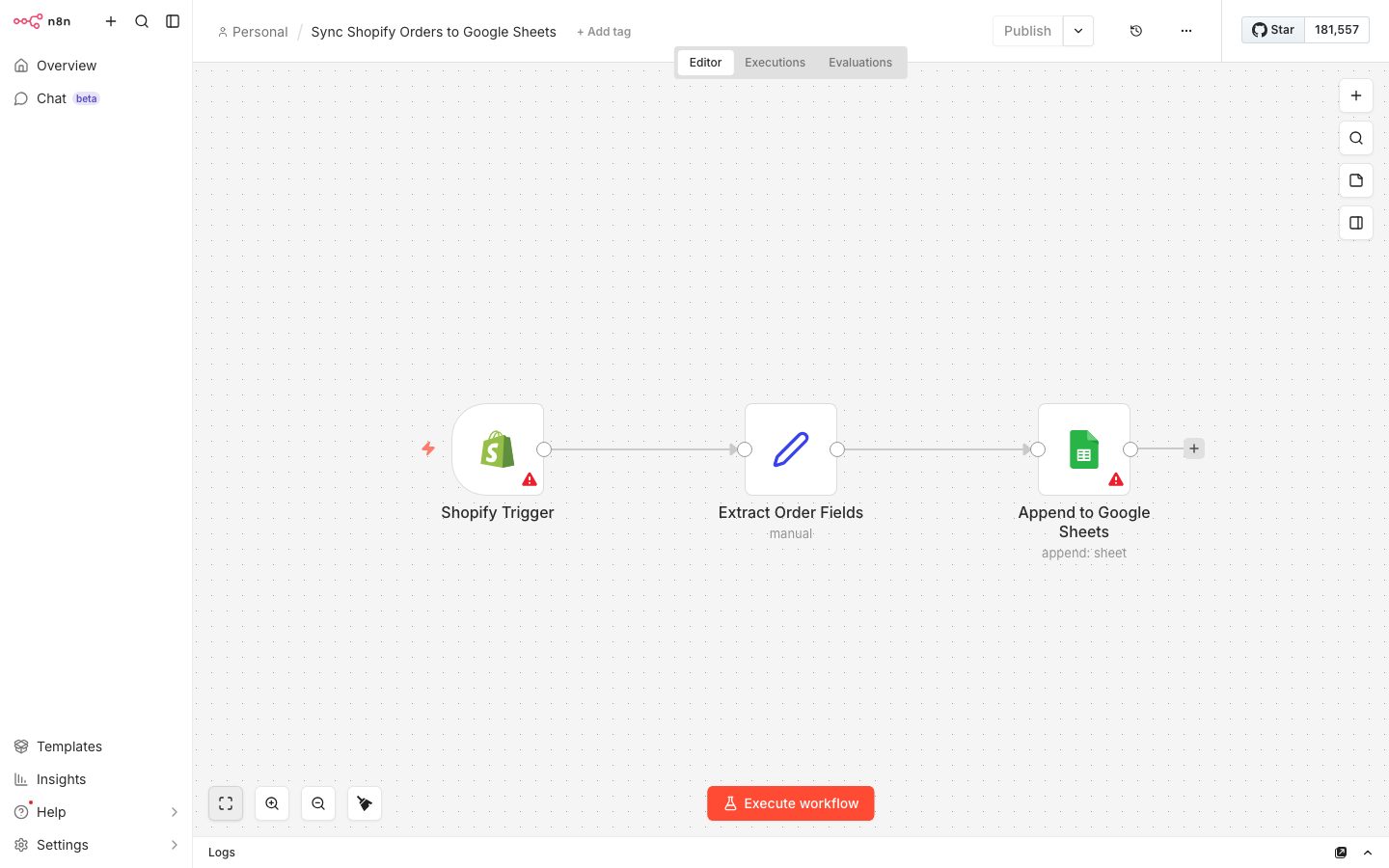
When a customer places an order on your Shopify store, this workflow:
- Catches the order via a Shopify webhook (instant, not polling)
- Extracts the fields you care about: order number, customer name, email, items, total, shipping address
- Formats the line items: if someone ordered 3 products, each gets its own row (or you get a comma-separated summary, your choice)
- Appends a row to your Google Sheet with clean, structured data
No polling interval. No delay. The row appears in your spreadsheet within seconds of the order being placed.
What you’ll need
- An n8n instance, cloud or self-hosted. If you don’t have one yet, n8n Cloud has a 14-day free trial. Self-hosted is free forever (my pricing guide covers both options).
- A Shopify store with admin access to create a custom app.
- A Google account with a Google Sheet ready. Create a blank sheet and add these column headers in row 1:
| Order # | Date | Customer | Items | Quantity | Total | Currency | Shipping Address | Status | |
|---|---|---|---|---|---|---|---|---|---|
| Your data will appear here | |||||||||
Step 1: Create a Shopify custom app
You need an access token so n8n can receive order data from your store.
- In Shopify Admin, go to Settings > Apps and sales channels > Develop apps
- Click Allow custom app development if it’s your first time
- Click Create a custom app, name it something like “n8n Orders Sync”
- Under Configuration > Admin API integration, enable these scopes:
read_ordersread_customers(for customer name and email)
- Click Install app
- Copy the Admin API Access Token (you’ll only see it once)
- Copy the API Secret Key from the API Credentials tab
Save both keys somewhere safe. The Access Token is shown only once. If you lose it, you'll need to create a new app. The API Secret Key is used to verify that webhooks really come from Shopify.
Step 2: Set up the Shopify credential in n8n
- In n8n, go to Credentials > Add Credential > Shopify
- Fill in:
- Shop Subdomain: your store’s name from
yourstore.myshopify.com(just theyourstorepart) - Access Token: paste the Admin API Access Token
- APP Secret Key: paste the API Secret Key
- Shop Subdomain: your store’s name from
- Click Save
Step 3: Build the workflow (or import mine)
If you want to skip the building and just import the finished workflow:
Download the template: shopify-orders-to-sheets.json. Import it in n8n via Workflows > Import from File, then update the credentials with your own Shopify and Google accounts.
If you’d rather build it yourself, here’s each node:
Node 1: Shopify Trigger
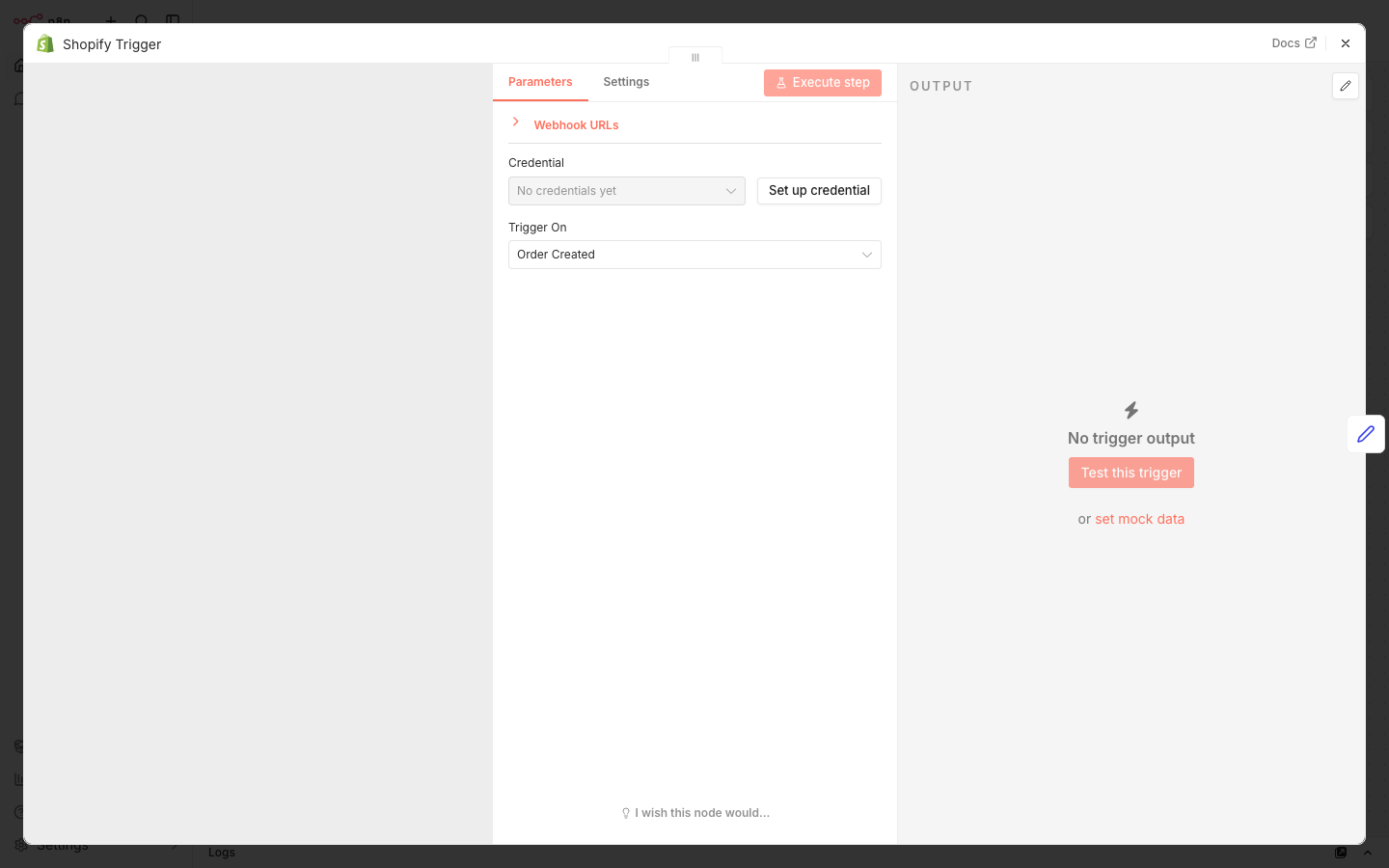
- Add a Shopify Trigger node
- Select your Shopify credential
- Set Topic to
orders/create
This registers a webhook with Shopify. When an order comes in, Shopify sends the full order payload to n8n in real time.
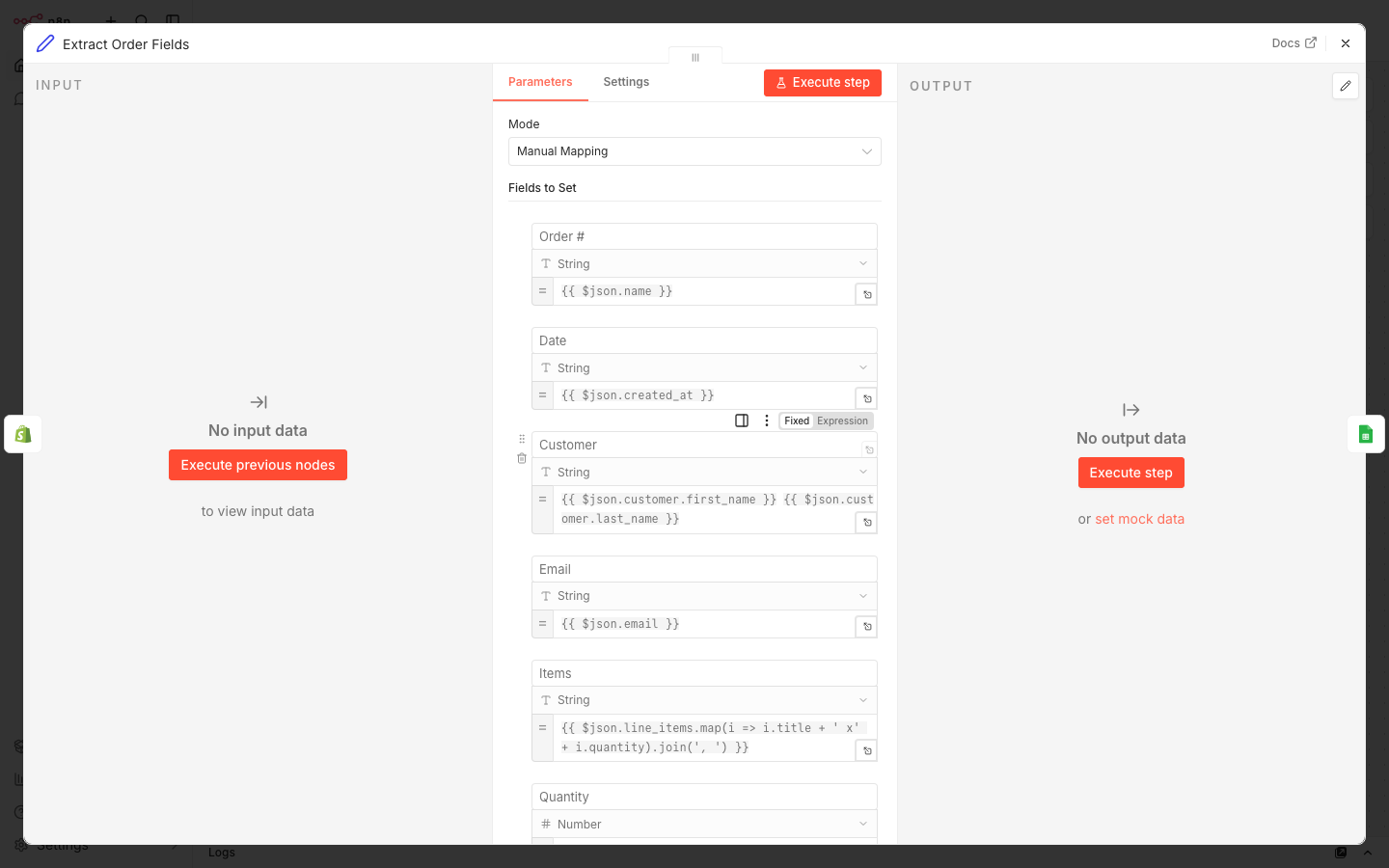
Node 2: Set (extract and format fields)
- Add a Set node connected to the trigger
- Switch to Manual Mapping mode
- Map these fields:
| Output field | Expression (click to copy) |
|---|---|
| Order # | {{ $json.name }} |
| Date | {{ $json.created_at }} |
| Customer | {{ $json.customer.first_name }} {{ $json.customer.last_name }} |
{{ $json.email }} | |
| Items | {{ $json.line_items.map(i => i.title + ' x' + i.quantity).join(', ') }} |
| Quantity | {{ $json.line_items.reduce((sum, i) => sum + i.quantity, 0) }} |
| Total | {{ $json.total_price }} |
| Currency | {{ $json.currency }} |
| Shipping Address | {{ $json.shipping_address?.address1 }}, {{ $json.shipping_address?.city }} |
| Status | {{ $json.financial_status }} |
The Items expression concatenates all line items into a readable string like “Blue T-Shirt x2, Red Cap x1”. The Quantity field sums up the total item count.
Node 3: Google Sheets (append row)
- Add a Google Sheets node
- Select your Google credential (n8n will prompt you to connect your Google account via OAuth)
- Set Operation to Append Row
- Select your spreadsheet and sheet tab
- Set Mapping to Map Automatically. n8n will match field names to your column headers
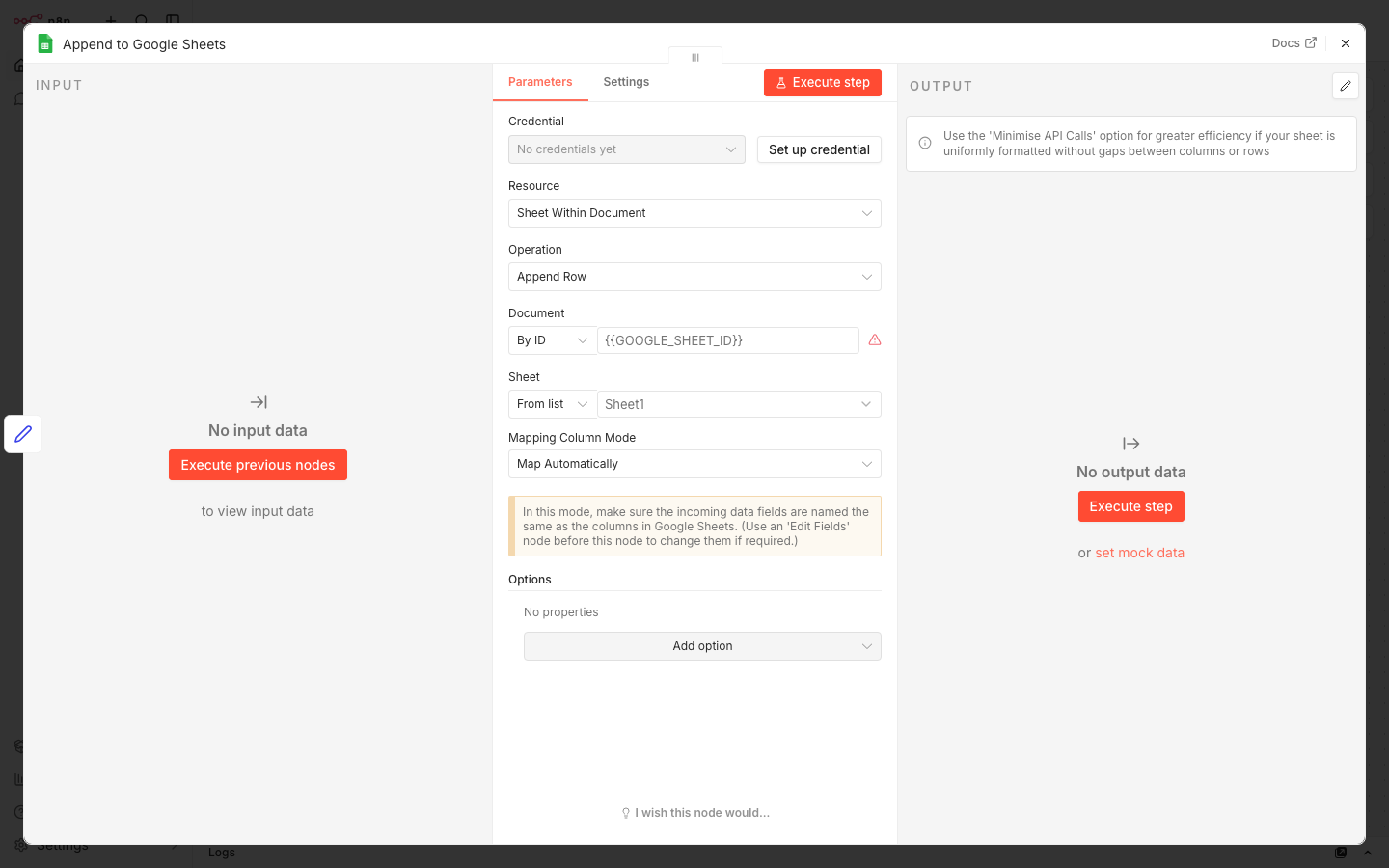
Important: Your Google Sheet column headers must match the field names from the Set node exactly. If your sheet header says "Order #" and the Set node outputs "Order Number", it won't map correctly.
Step 4: Test it
- Activate the workflow in n8n (toggle it on)
- Place a test order in your Shopify store (or use Shopify’s test notification: Settings > Notifications > Webhooks > Send test notification)
- Check your Google Sheet. The row should appear within seconds
If nothing happens, check these common issues:
- Is your n8n instance accessible via HTTPS? Shopify silently rejects non-HTTPS webhook URLs.
- Did the workflow actually activate? Check Shopify Admin > Settings > Notifications > Webhooks to verify the webhook was registered.
- Are your credentials correct? The Access Token is shown only once during app creation.
Make it your own
This template is a starting point. Here’s how I’ve customized it for clients:
- Add a filter node to only log orders above a certain amount. Useful if you’re tracking high-value sales separately.
- Split line items into separate rows instead of concatenating them. Better for inventory tracking. Use the Split Out node on
line_itemsbefore the Set node. - Add a currency conversion column if you sell in multiple currencies. Use a Code node to convert at a fixed rate or call an exchange rate API.
- Send a Slack notification alongside the sheet update. Add a Slack node in parallel after the Set node.
- Include discount codes and notes. The order payload has
discount_codesandnotefields you can add to your sheet.
Isn’t there an app for this?
Yes, several. Most charge $5 to 15/month. Some are free but limited to a certain number of orders.
This n8n workflow costs nothing to run on a self-hosted instance. On n8n Cloud, each order sync is one execution. Even the Starter plan at €24/month gives you 2,500 executions, which covers most stores.
More importantly, an n8n workflow is a building block. Once you have order data flowing through n8n, you can add steps: send a Slack alert for high-value orders, update your inventory system, create an invoice, flag suspicious orders. A Shopify app gives you one thing. A workflow gives you a foundation.
If you want help setting this up for your store, or building something more complex on top of it, send me an email. First conversation is always free.